How it works
Add a photo, then drag across anything you don't want people to see. Each drag leaves a solid box. You can move a box, pull its corners to resize it, delete it, or undo your last change. Add as many as you need: one for the house number, one for the car in the drive, one for the letter on the table.
When you press download, your browser builds a brand-new picture. It copies your photo into a blank image, paints each box over it in solid colour, and saves the result. The pixels that were under a box are replaced before the file is written, so the new file has nothing of them left. There is no hidden layer, no "original" tucked inside, and no way to drag the box aside later.
The new file is named after your photo with -covered on the end, such as parcel-covered.jpg. It has the same pixel size as the original. Your original file stays exactly as it was, so keep it somewhere private and share the covered copy.
Why there is no blur button
Most free tools offer blur or pixelation, because they look softer. The trouble is that both keep a smeared version of what was there, and a smeared version can often still be read. We tested it. We drew a shipping label with an invented address in letters 54 pixels tall, then hid the address three ways.
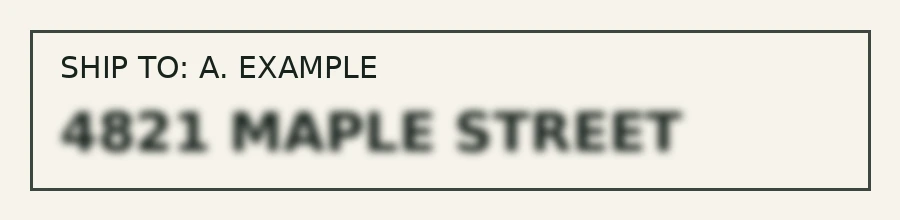
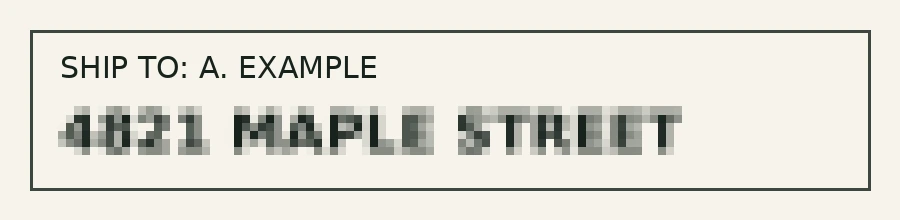
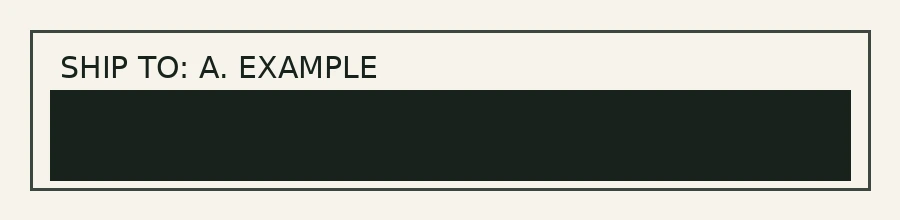
Heavier blur hides more, but then you have to judge how heavy is heavy enough for each photo, and the rough shape and length of the text still show. Numbers are the worst case: there are only ten digits, so a pixelated number can sometimes be guessed back by trying each one. A solid box needs no judging. The full test, with the original label, is in the guide What a photo can reveal even without metadata.
So this tool only does the safe thing. You can choose black, white or grey, and that is all. White is handy on paperwork, where a black bar would draw the eye. Grey is a middle choice for busy photos.
A worked example with the sample
The built-in sample is a drawing of a parcel, 1,600 × 1,200 pixels, with an invented name, address, barcode and tracking number. Nothing on it is real. We loaded it into the tool, drew two covers, and downloaded the result. These are the actual files: the sample on the left, and the tool's download on the right.
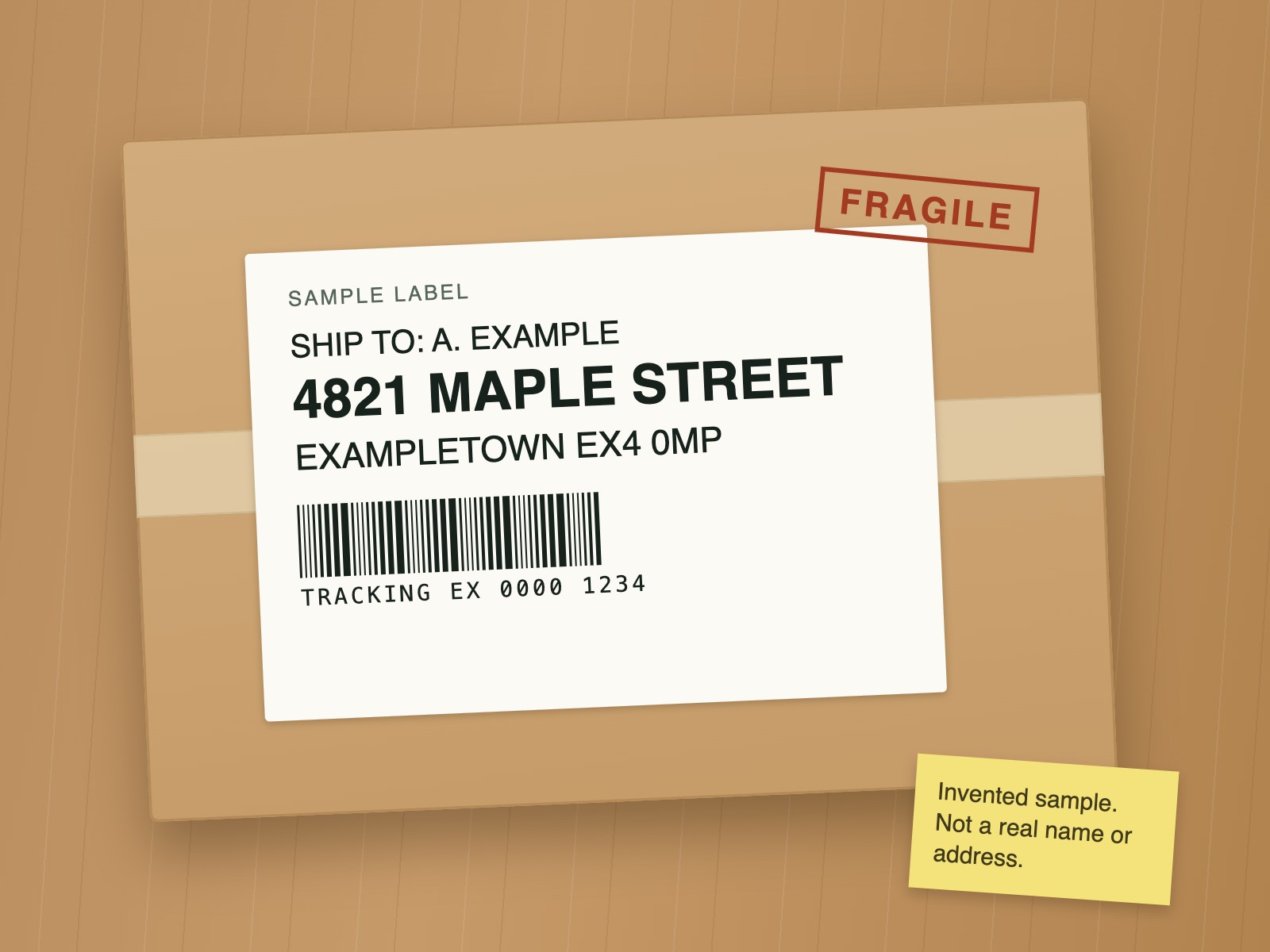
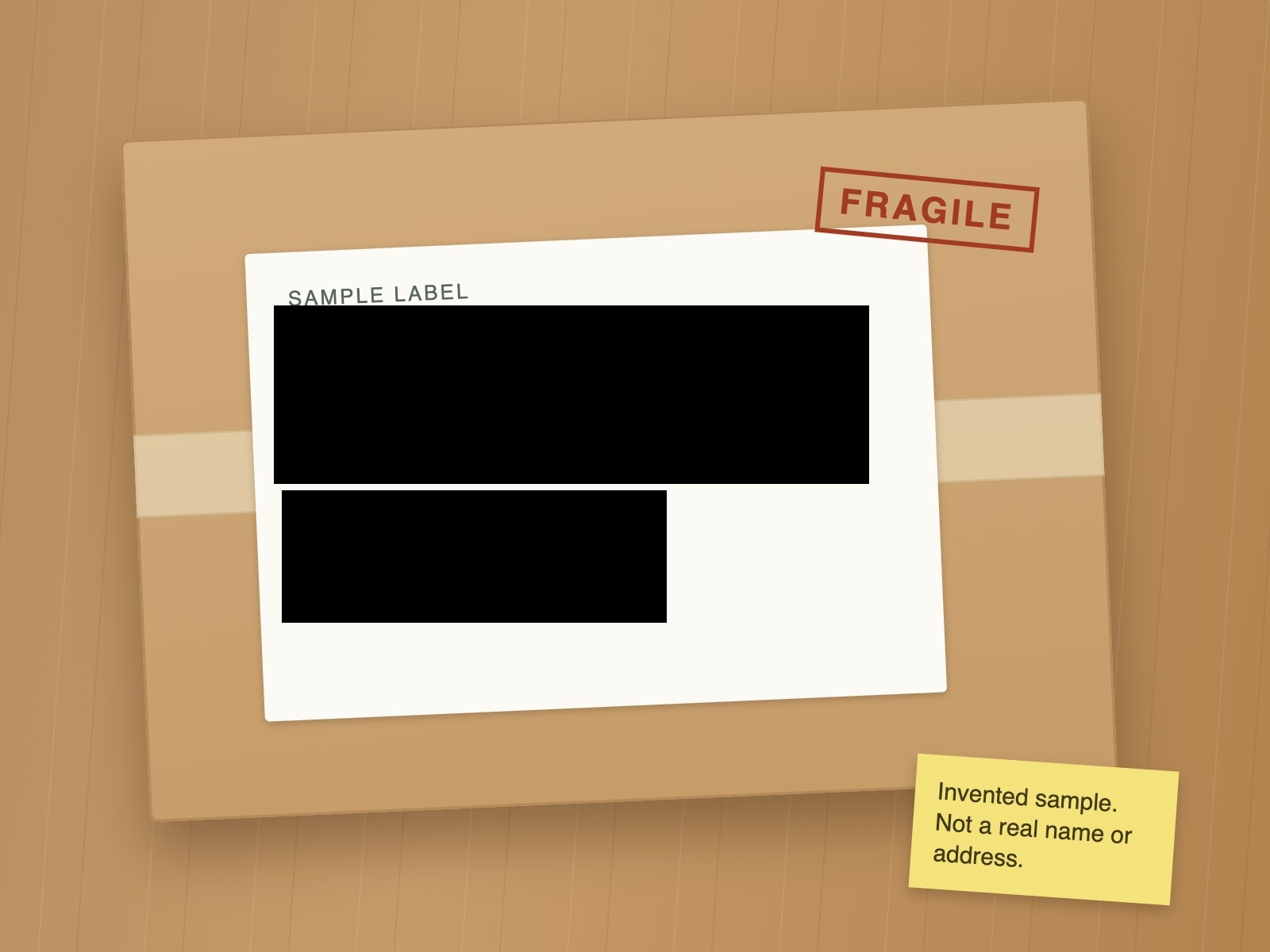
The first cover is 750 × 225 pixels and hides the name and the two address lines. The second is 485 × 167 pixels and hides the barcode and the tracking number, because a barcode can carry the same details as the text above it. The words "SAMPLE LABEL" and "FRAGILE" are left alone: they say nothing about anyone.
The sample is a 129 KB JPEG. The covered copy came out as a 1,600 × 1,200 pixel JPEG of 102 KB. It is smaller because flat black is cheaper to store than text and bars. We then opened the saved file and measured the covered areas. Every pixel inside both boxes was black, with values between 0 and 2 on a scale where 0 is pure black and 255 is white. The tiny wobble is the JPEG format rounding; no trace of the letters or bars is in it. Saved as PNG instead, a covered area is exactly one value throughout.
Notice what the "after" picture still tells you: a parcel was addressed to someone, and the address was about three lines long. That is the honest limit of any cover.
What to look for before you share
The tool covers what you tell it to. Finding what needs covering is still your job. Zoom in and go round the picture slowly. These are the things people most often miss:
- Addresses and names: parcel labels, envelopes, bills, prescriptions, a house number by the door, a street sign at the edge of the frame.
- Number plates: yours and your neighbours'.
- Barcodes and QR codes: tickets, boarding passes and delivery labels. A barcode can hold the same details as the printed text, and a phone can read it from a photo.
- Screens: a laptop or phone in the background with an email, a map or a chat open.
- Faces: other people's children, bystanders, colleagues who didn't agree to be posted.
- Keys, cards and badges: a key's shape can be copied from a clear photo, and card numbers can be read.
- Reflections: windows, mirrors, glasses and shiny kettles show what is behind the camera.
Make each box a little bigger than the thing it hides. A box that only just covers a line of text can leave the tops of tall letters showing. The photo privacy checklist runs through the same checks in order, with a printable page.
Why the download is a new file
Two things can go wrong when you hide part of a photo in an ordinary editor. The first is that the editor keeps the original underneath, as a layer or an "undo" history inside the file. The second is rarer but real. In 2023, researchers disclosed a bug known as aCropalypse in the screenshot editor on Google Pixel phones, with a related one in the Windows Snipping Tool. Edited screenshots could keep leftover data from the original picture, so parts of what had been cropped or covered could be recovered. Both were fixed, but the lesson holds: when it matters, export a fresh image rather than editing the old file in place.
This tool always does that. The download is built from pixels alone, so two things follow:
- Nothing of the covered area remains. The file holds the solid colour where the box was, and that is all.
- None of the original's metadata comes along. No GPS location, no date and time, no camera model, and no embedded thumbnail. That last one matters: some photos carry a small preview picture inside the file, and an editor that changes the main picture can leave the old preview behind, still showing what you covered. A new file has no old preview.
If you want to see what your original was carrying, Photo Privacy Check lists it, and the guide What does photo metadata reveal? explains each part.
Limits and honest notes
- It hides what you cover, and nothing else. The tool does not look at your photo for you. Reflections, screens and background details are yours to find.
- A cover shows that something was hidden. Anyone can see where the box is and roughly how big the hidden thing was. A long box on a letter still says "there was a line of text here". If even that gives too much away, crop the area out or retake the photo.
- Context can undo a cover. Covering a house number doesn't help if the street sign, a distinctive building or a tagged location is still in the post.
- Faces: this is not face detection. Covering a face works, but you place the boxes, and a person can still be recognised from hair, clothes, a tattoo or the setting.
- Boxes are upright rectangles. There are no circles, freehand shapes or tilted boxes. For a tilted label, use a box big enough to cover its corners, or several smaller ones.
- The picture is re-encoded once. The whole photo is saved again as a JPEG at quality 95, or as a PNG if you want no further loss and don't mind a larger file. Our test of re-saving one photo 20 times shows what repeated saves cost; one save at this quality is hard to see.
- One photo at a time, up to 40 MB and 50 megapixels. JPEG, PNG and WebP only. Some phones can't build very large pictures in a web page. If that happens the tool says so and makes no file.
- The file name is yours to check. The tool keeps your photo's name and adds
-covered. If the name itself gives something away, rename the copy. - It is not a guarantee of anonymity. It removes what is under the boxes and the original's metadata. It cannot stop a platform, a recipient or a determined person from working things out another way.
Questions
Is my photo uploaded anywhere?
No. The photo is opened, drawn on and saved by your own browser on your own device. The page has nowhere to send it. Closing or refreshing the page clears the photo and the covers.
Can someone remove the box and see what was underneath?
No. In the downloaded file the box is not an object sitting on top of the photo. The pixels under it were replaced with one flat colour before the file was saved, and the file was built new, so there is no earlier version inside it. We checked this on the tool's own downloads; the results are in the box at the foot of this page.
Why can't I blur instead? It looks nicer.
Because it is easy to blur too little without realising. In our test, a light blur and small pixel blocks both left an address readable. A tool that offers blur invites that mistake. A solid cover can't be done wrong in that way.
Does the covered copy still have my location in it?
No. The new file is made from the picture alone, so the GPS position, date, camera details and embedded thumbnail from the original are not in it. Remember that the picture itself can still show where you are.
Will the rest of the photo lose quality?
Slightly, if you choose JPEG, because the whole picture is saved once more at quality 95. For a single save that is very hard to see. Choose PNG to keep every uncovered pixel exactly as it was; the file will be larger.
Can I use it on a screenshot?
Yes. Screenshots are usually PNG files, which the tool accepts. Choose PNG for the download as well, so text in the screenshot stays crisp.
Related guides
- What a photo can reveal even without metadata Signs, paperwork, screens and reflections, and the blur test in full.
- Photo privacy checklist: what to check before you post A tick-off list for taking, sharing and posting, with a printable page.
- What does photo metadata reveal? EXIF, GPS, XMP and IPTC, and the thumbnail that can outlive an edit.
- How to stop your phone saving location in photos Steps for iPhone, Pixel and Samsung.
Independent tool by Tidy (Infinite Dev Works). Look at the downloaded copy yourself before you share it.