PRIVACY GUIDE · CHECKLIST
Photo privacy checklist: what to check before you post
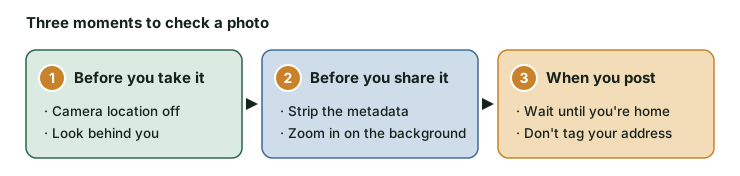
A photo can give away where you live in two ways: hidden data in the file, and details in the picture itself. This checklist covers both, in the order you'll meet them: when you take the photo, when you share it, and when you post it.
Tick each item as you go. Your ticks stay in this browser and aren't sent anywhere.
Free printable PDF
One US Letter page that also prints on A4 (choose "Fit to page"). Print it for your desk, or save it to your phone.
Download the photo privacy checklist (PDF)Before you take it
- Turn off location for the camera (iPhone: Settings > Privacy & Security > Location Services > Camera > Never. Android: camera settings > Location tags or Save location off).
- Look behind you: house number, street sign, car plate, school logo, mail with your address.
- Check windows, mirrors and screens for reflections.
Before you share it
- iPhone share sheet: tap Options and turn Location off.
- Strip metadata (GPS, date, camera) from the file before posting it publicly.
- Zoom in on the background. Blur or crop anything that pins down where you live.
- Check tickets, badges, boarding passes and keys: barcodes and numbers can be read from photos.
- Kids: no school uniforms, name tags or front-of-house shots.
When you post
- Post trips after you get home, not while the house is empty.
- Don't tag your home or your kids' school as a location.
- Selling online? Shoot on a plain background, not your front room.
- Not sure what an app strips? Clean the file yourself before you upload.
A clean file can still show your street.
Removing metadata deletes the GPS position stored in the file, but not the house number behind you. Do both checks.
WATCH · 23 SECONDS
Sent a photo of your front door? Read this firstOur own video. Pressing play loads the player from YouTube; nothing is requested from YouTube before that. More on the Tidy Tips channel.
Why each step matters
When camera location is on, your phone writes the GPS position into each photo. Some apps and sites remove it when you upload; others keep the original file, and a photo sent as a file or document usually keeps everything. Turning location off at the camera stops it being saved at all, and cleaning a file before you share it covers the photos you already have. The steps for each phone are in how to stop your phone saving location in photos, and what photo metadata reveals covers what else a file can hold.
The picture itself is harder to clean. House numbers, street signs, a school logo, a parcel label or a view from your window can each narrow down where a photo was taken, and a reflection in a mirror, window or screen can show more than you meant to. Zoom in before you post, and blur or crop properly: a thin brush stroke or a low-opacity scribble can sometimes be undone. What a photo can reveal even without metadata goes through these details one by one.
Clean a photo's location
Photo Privacy Check shows what a JPEG carries and removes the location and other metadata in your browser. Your photo isn't uploaded.
Check and clean a photoIndependent general guidance by Tidy. Phone setting names can differ by model and software version. Checked 11 November 2026.